
Table of contents
Overview
Once you have created a price list, attach it to your photo job. This step is required before you can begin selling products in your online shop.
How to attach a price list
To link a price list to your photo job, follow these steps from the Photo Job Settings page:
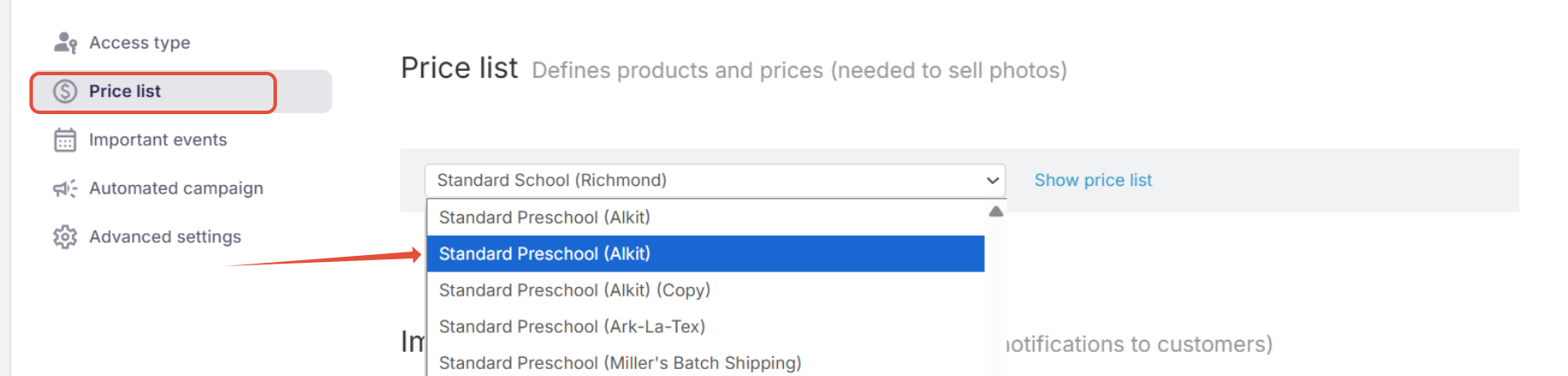
- Navigate to Step 2 – Price List.
- Select your desired price list from the dropdown menu.
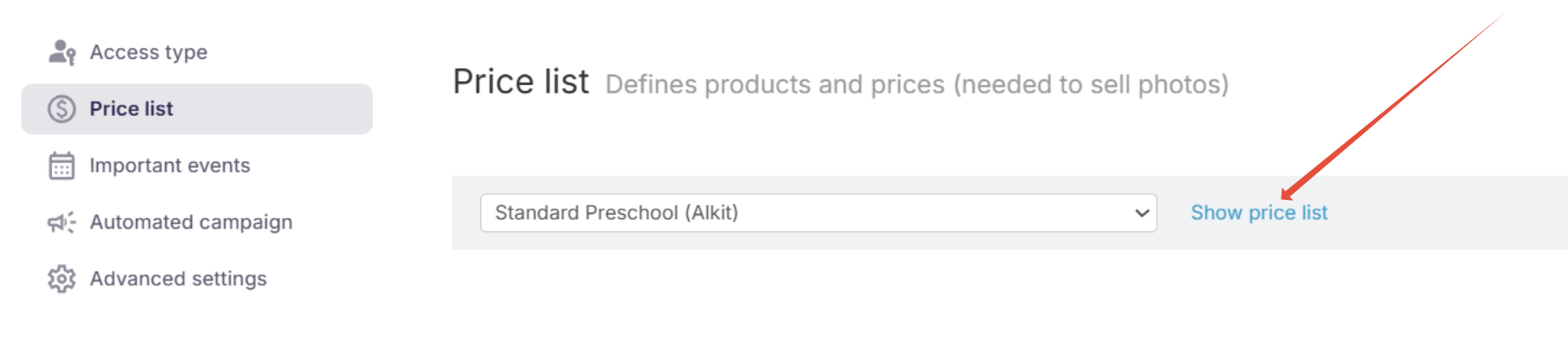
[Optional] You can click Show profile to quickly view which packages and products are included in the selected price list.
FAQs
Can I assign a different price list to one of my albums (Staff album)?
Yes, this is possible. This article will guide you through the set-up.
Can I set up my early bird price list that has some special products included and lower prices for the first 3 days and then switch the price list?
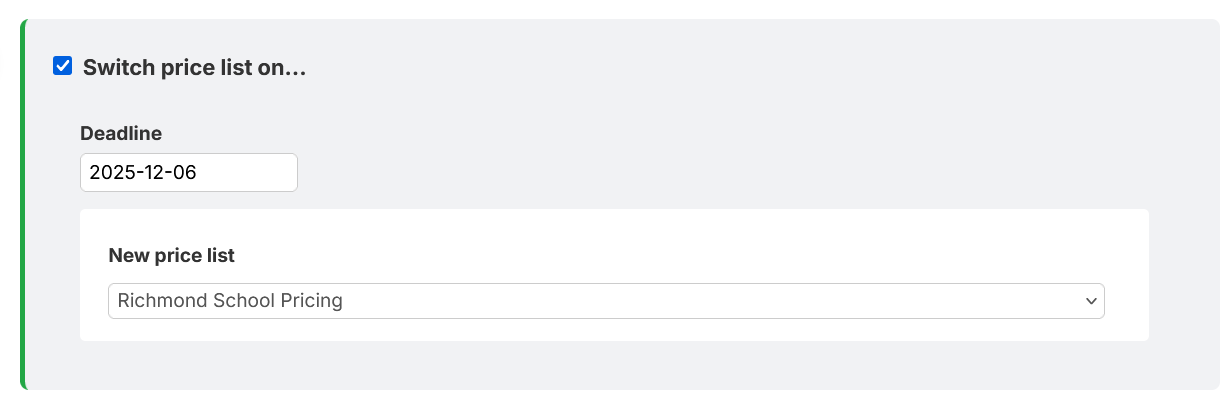
Yes, this can be done manually. However, if you’re on a paid plan, we can enable an additional feature that allows you to automatically switch a job’s price list on a specific day. Simply reach out to our Customer Care team.
Please note: Unlike other deadlines in the system, the price list switch occurs on (not after) the actual day of the deadline.
For example: if your deadline is set to December 6, the switch will take place on December 6 at 12:00 a.m.
The takeaway
Attaching a price list is a simple but essential step to activate selling in your photo job. Make sure you’ve reviewed your price list and selected the correct one, once done, save the settings before you continue to another page.