
Table of contents
- Overview
- Why access codes are removed
- Error when reusing an access code
- Steps to restore a removed access code
- The takeaway
Overview
When all images linked to an access code are deleted, the code itself is visually removed from the album to prevent empty entries from cluttering your job. This article explains why this happens and how to properly restore a deleted access code.
Why access codes are removed
Deleting all images associated with an access code removes that code completely from the album. This helps keep your albums clean and organized without unused codes taking up space. They are NOT deleted, and still exist in the corresponding job; they are just not visible in Photo Management.
Error when reusing an access code
If you try to manually add a code that was previously deleted, you may see an error message about using the same password twice.

This happens because even though the code was removed from the album, it still exists in GotPhoto’s system data and cannot be duplicated directly.
Steps to restore a removed access code
Follow these steps to properly bring back an access code:
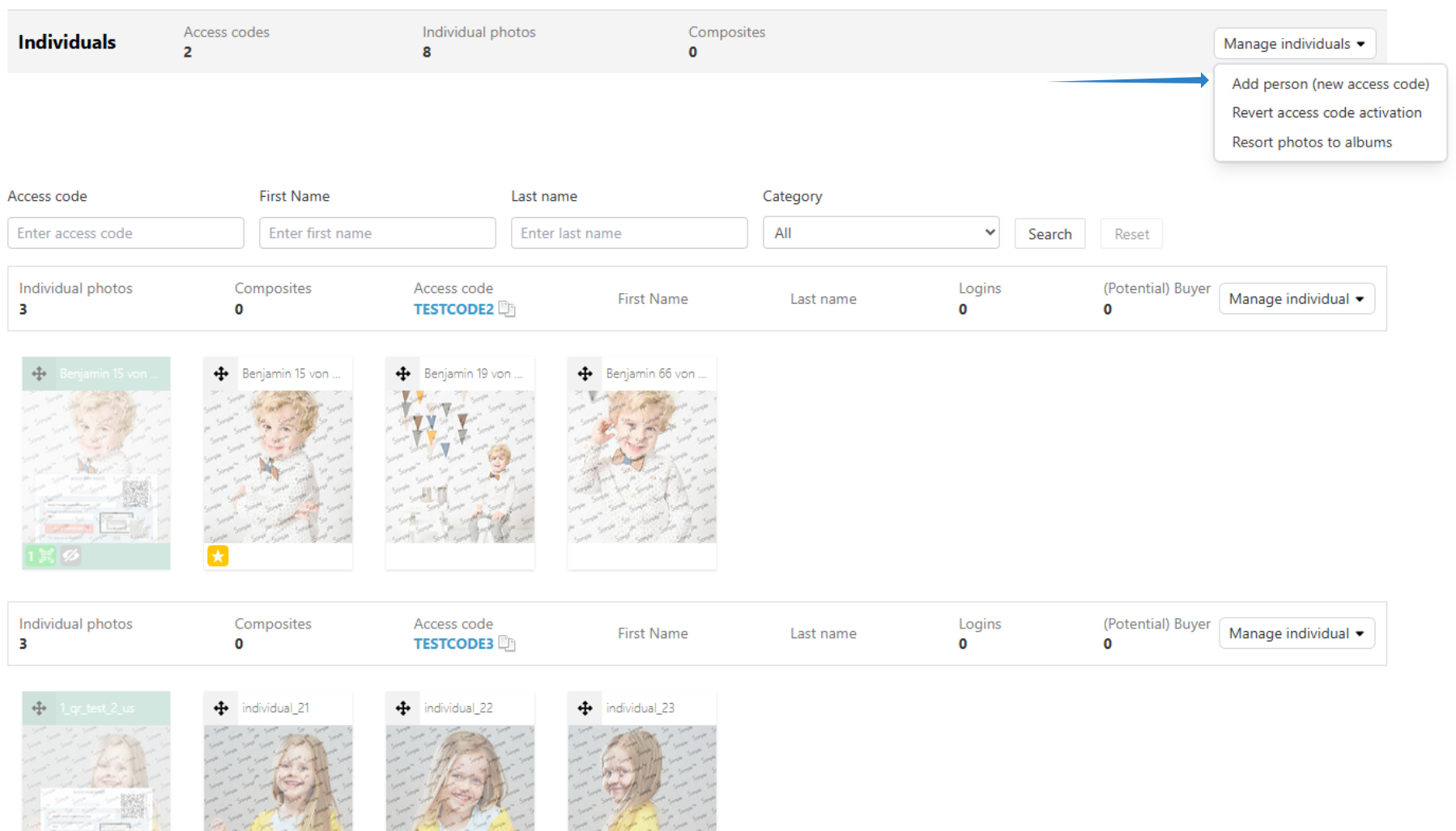
- 1Inside the album, click the Manage individuals dropdown and select Add person (new access code).
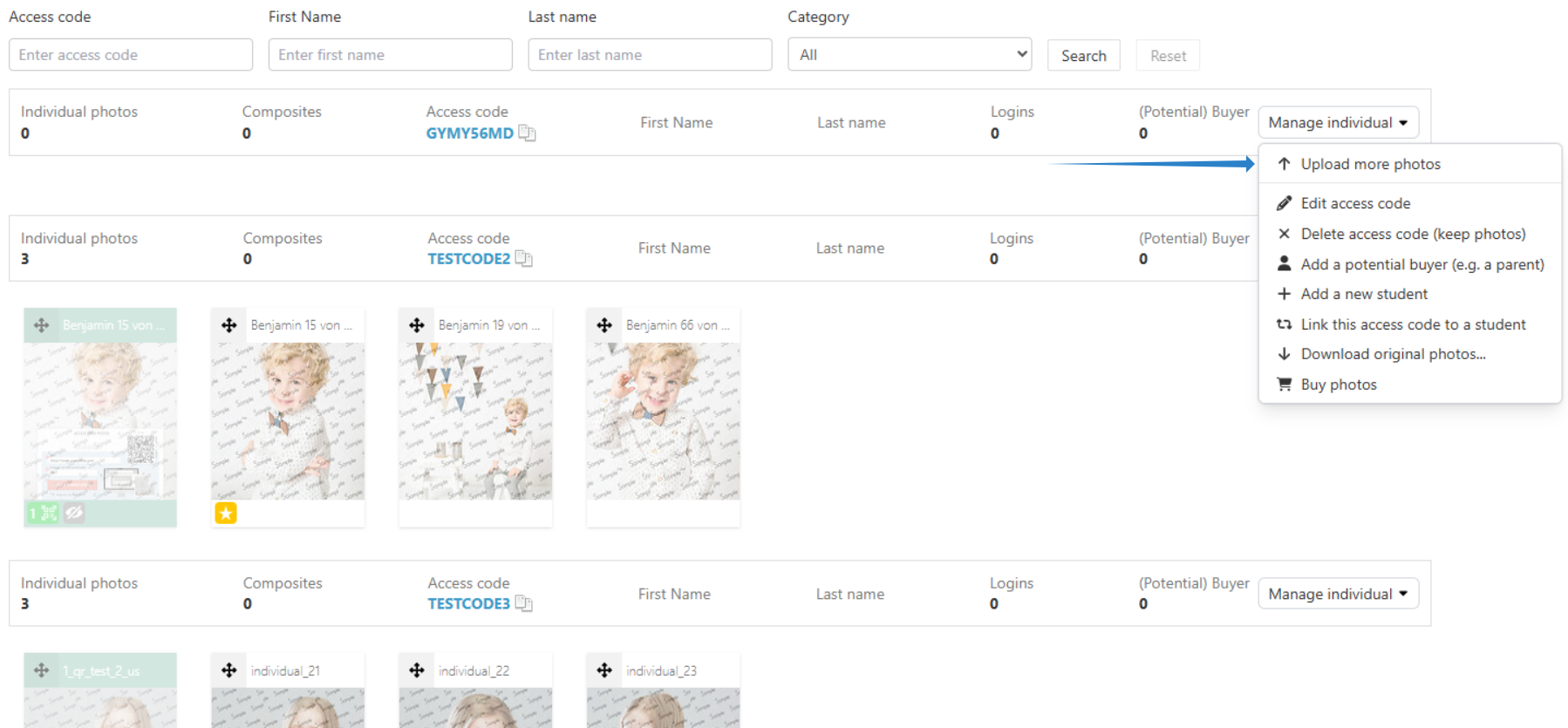
- 2For the newly created random access code, click the Manage individual dropdown and select Upload more photos.
- 3Upload the photos that should be associated with the original access code.
- 4After the images generate, click on the first image, then select the preview on the right (or use Add access code under the image). Change the random access code to the original one you want to restore.
- 5Click Save.
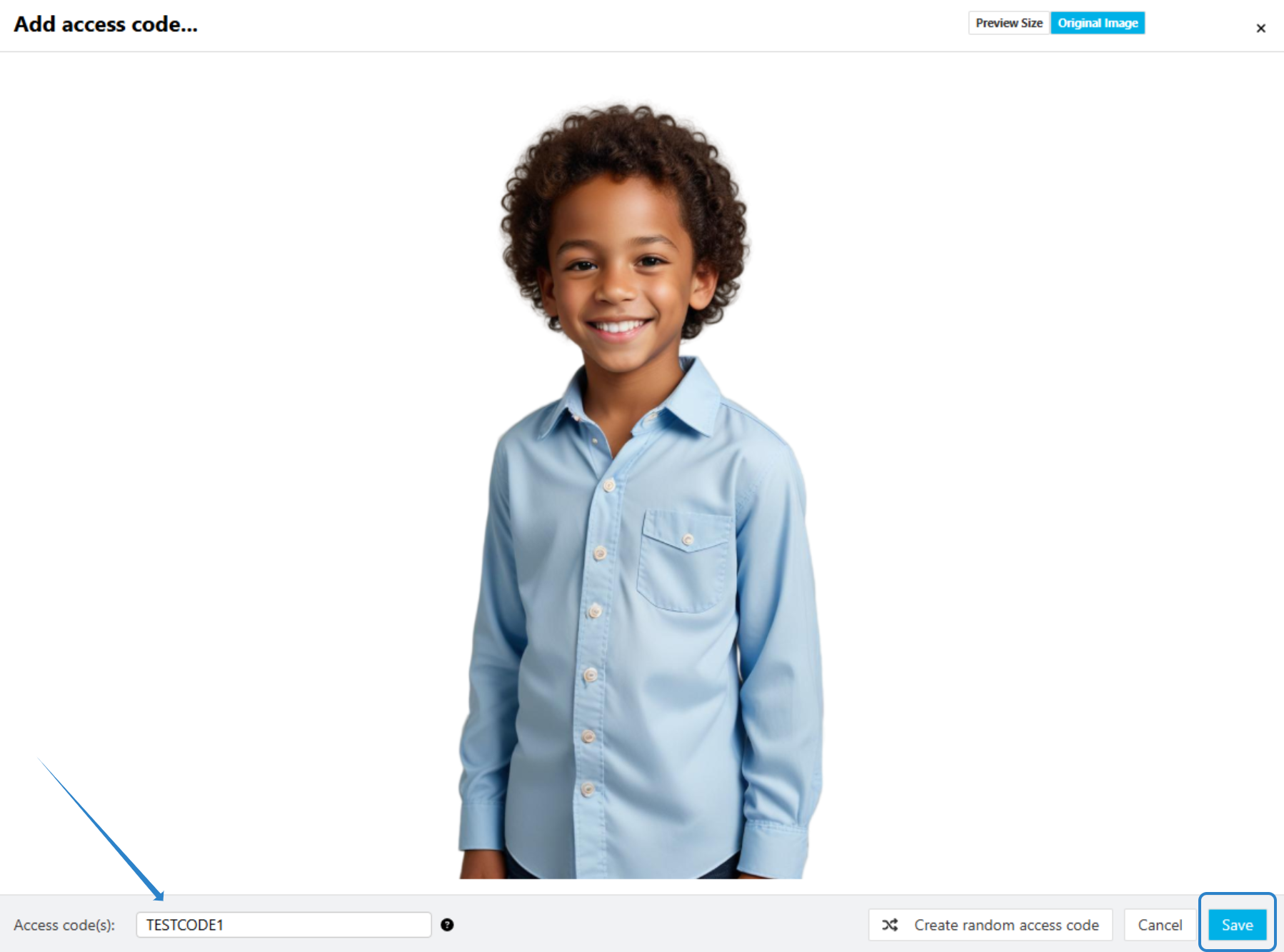

- 6Once saved, the access code will reappear as usual.
[Optional] If you need to restore multiple access codes, it may be faster to deactivate all codes and then reactivate them after re-uploading the images.
The takeaway
You cannot directly reuse a removed access code, as it still exists in GotPhoto’s system. Instead, create a new code, upload the photos, and replace the random code with the original one. For bulk restorations, deactivate and reactivate codes after uploading photos to save time.