
Overview
Instead of using QR cards, you can use barcode scanning if you have one of the Entagged devices that attaches to your camera (see compatibility list). You can purchase the device here.
In this article, we’ll review how to generate a barcode list for picture day. We also offer a paperless Names List tagging feature.
Barcode list generation
Please follow these steps to generate your barcode list for picture day:
- Within your photo job, select QR Tagging with List of Names and make sure you’ve added names. You can add names by:
- Uploading a names list (roster)
- Using parent registration (picture-day sign-up)
- Through Prepay registration/orders (read more about Prepay)
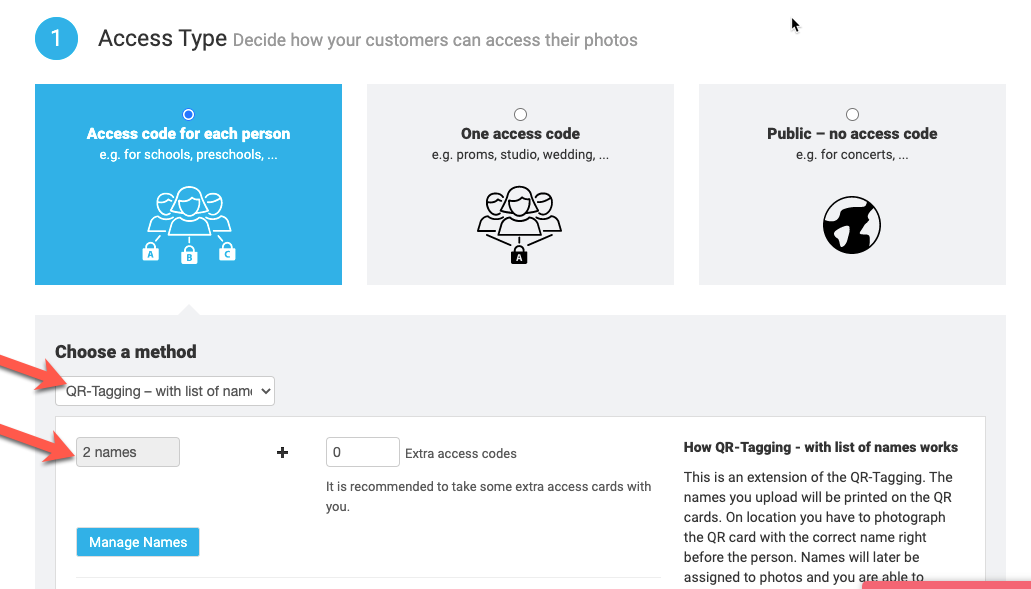
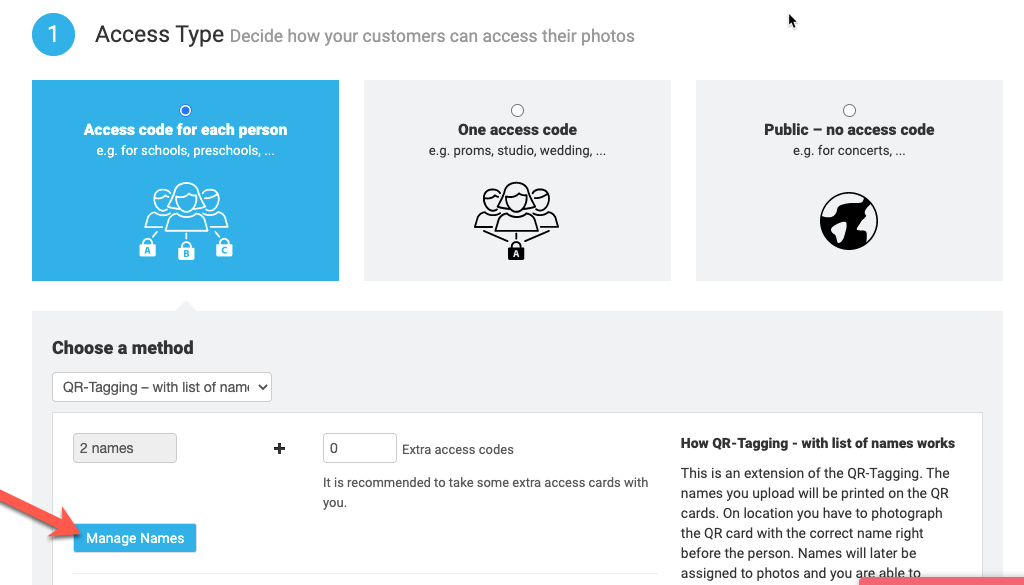
- Click Manage Names to access the names list interface.
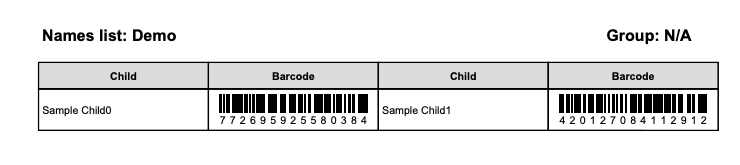
- Under the Export dropdown, select PDF with barcodes.

- Print your barcode list.
The Takeaway
Discover an efficient barcode solution for picture day with GotPhoto and Entagged. Simply choose QR Tagging with List of Names, manage your names, export a barcode list as a PDF within the photo job, and print — a streamlined process that enhances accuracy and saves time.