
Table of contents
Overview
In some rare cases, your team photo pose may show up in the wrong position on the Next Gen matching page, even though everything looks correct in Photo Management.
What causes this
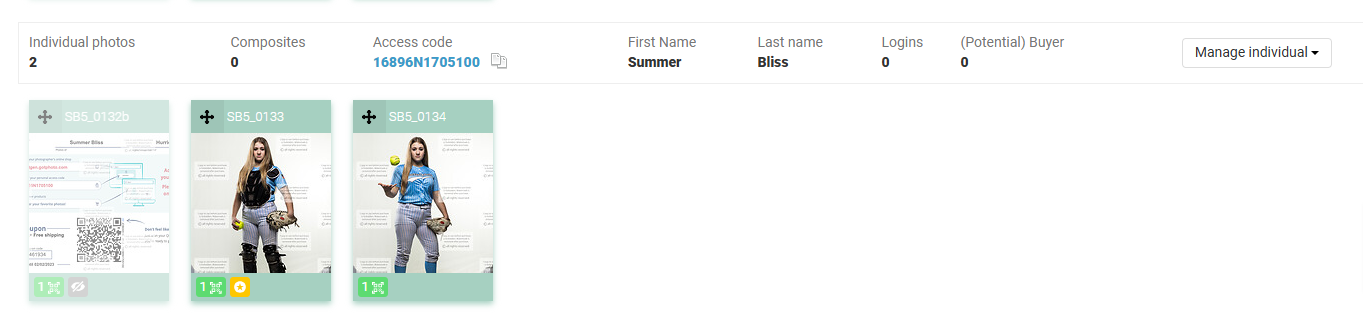
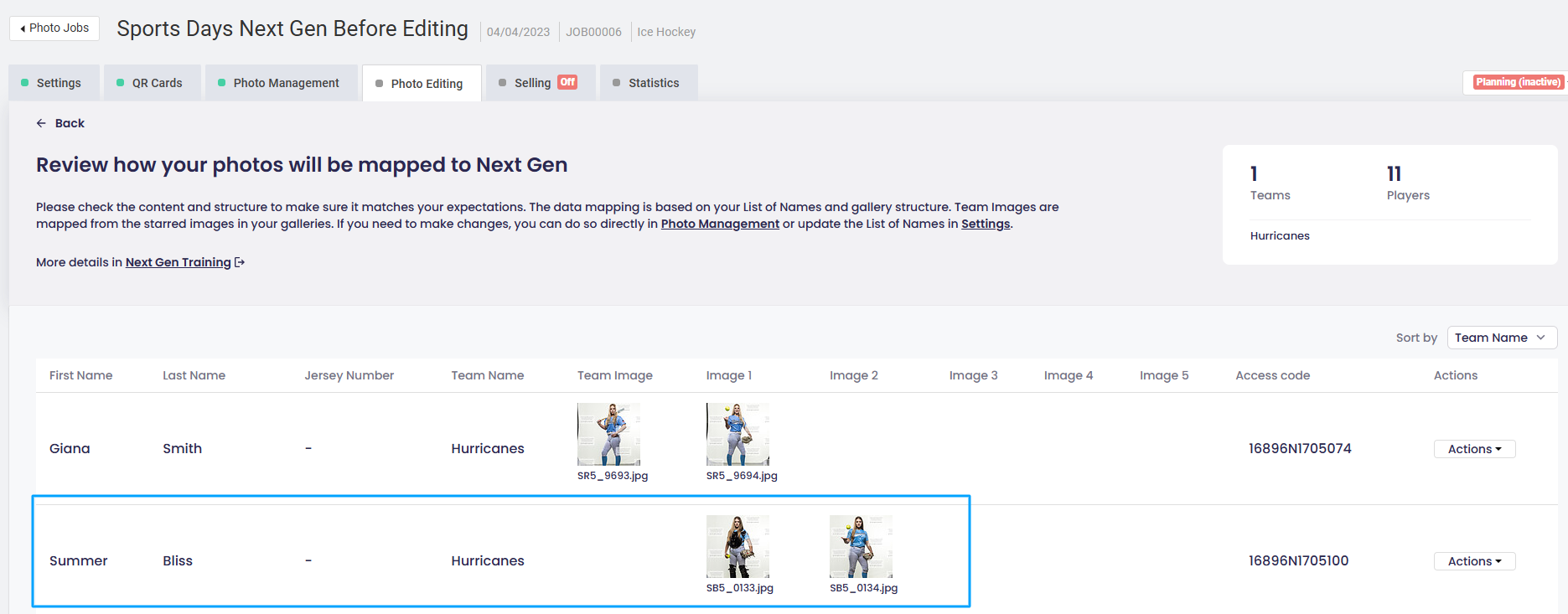
This may happen if you've uploaded and deleted the same galleries in the past. Instead of appearing in the team photo slot, the image displays as “Image 1.”
Album view:
Matching page view:
How to fix it
To correct the photo placement, follow these steps in the affected gallery:
- 1Temporarily unhide the QR card image and set it as the index image.
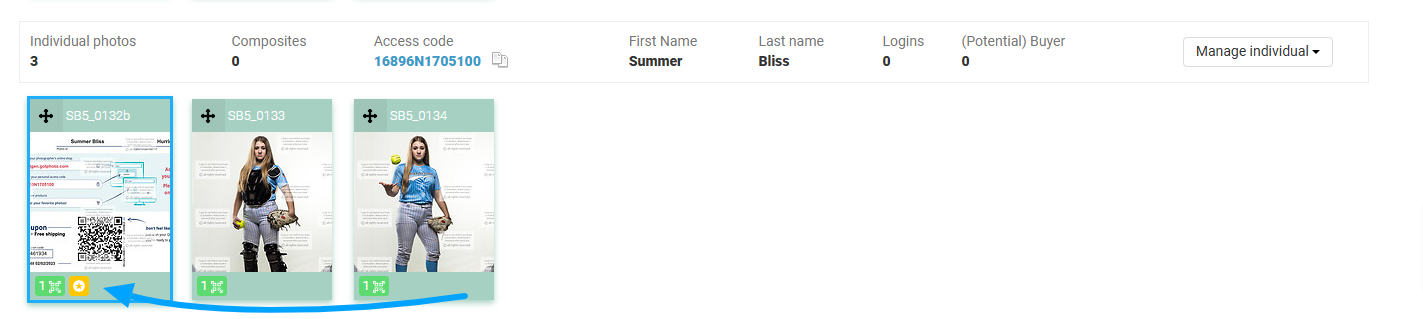
- 2Then, select the correct team photo and set it as the index image again.
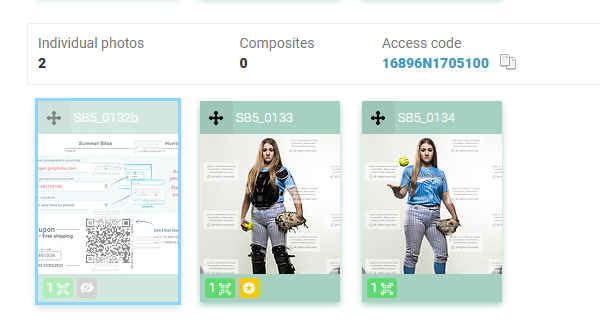
- 3Finally, re-hide the QR card image and save your changes.
Go to the Graphic Creation Service with Next Gen to confirm the team photo now appears in the correct spot:

The takeaway
If your team photo appears in the wrong slot in the Next Gen matching page, reassign the index image temporarily using the QR card. Then set the correct team photo and re-hide the QR image to fix the display issue.