
Table of contents
Overview
Once you have created a price list, you can easily manage its settings from the Price List Settings page.
Edit price list settings
- 1Open the price list by clicking its name, or use the Actions dropdown and select Edit.
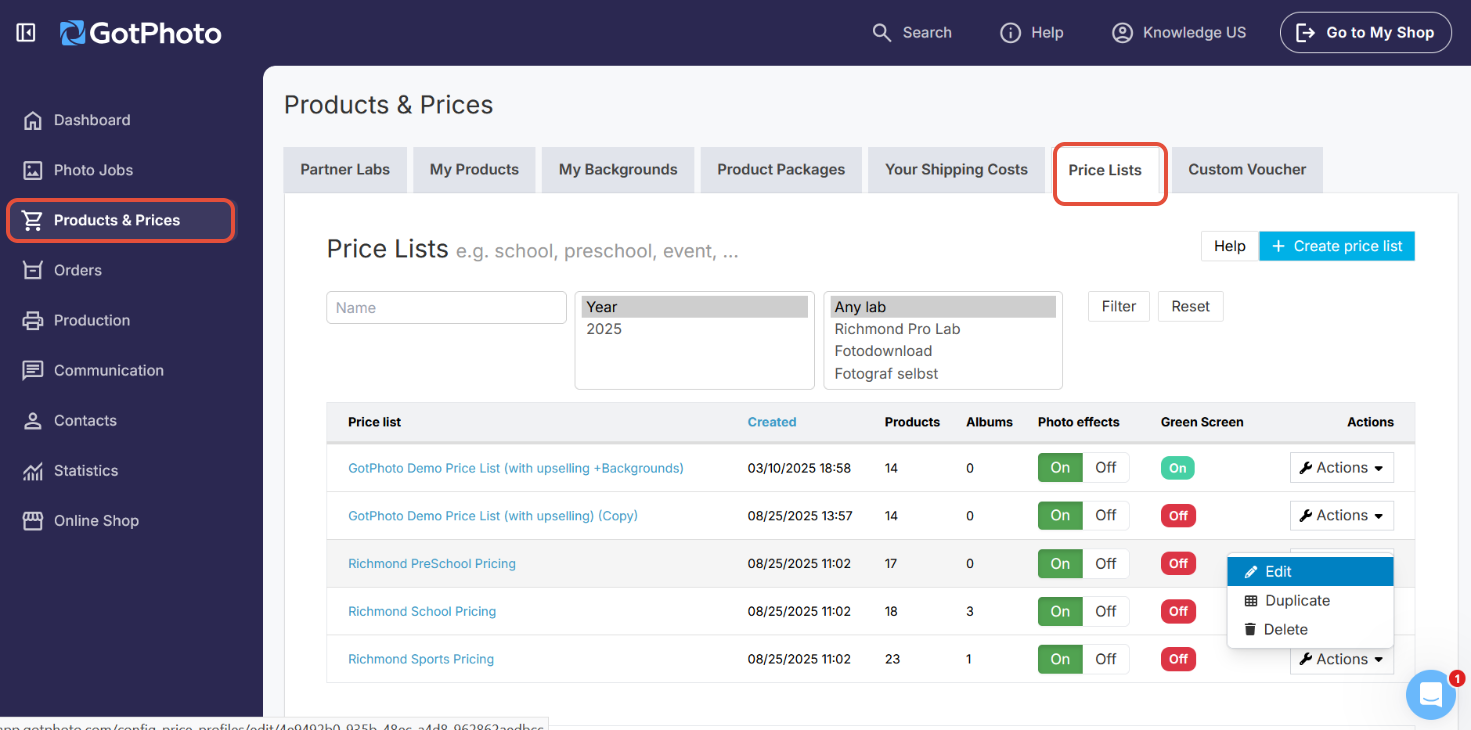
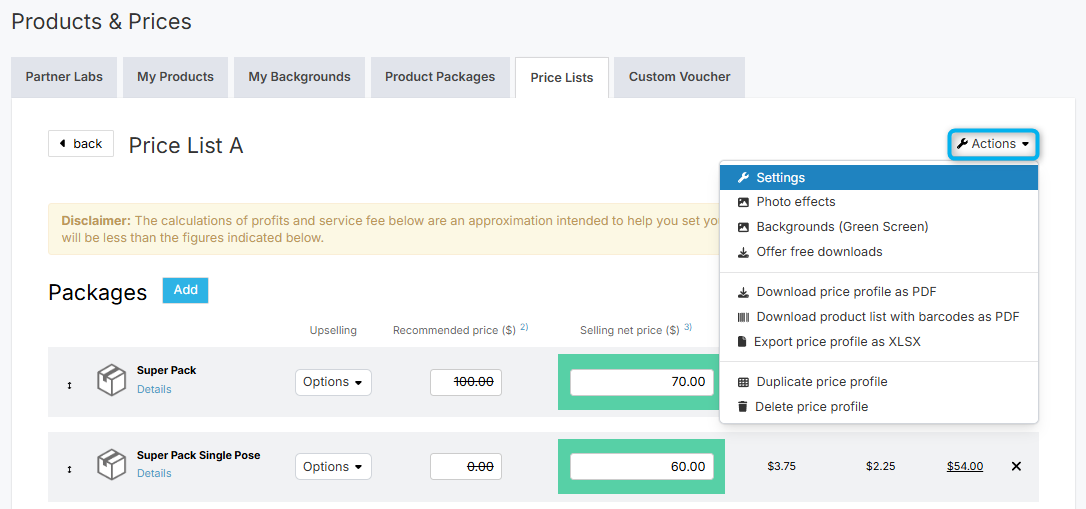
- 2Click the Actions dropdown in the top right and select Settings.
- 3Adjust the settings as needed:
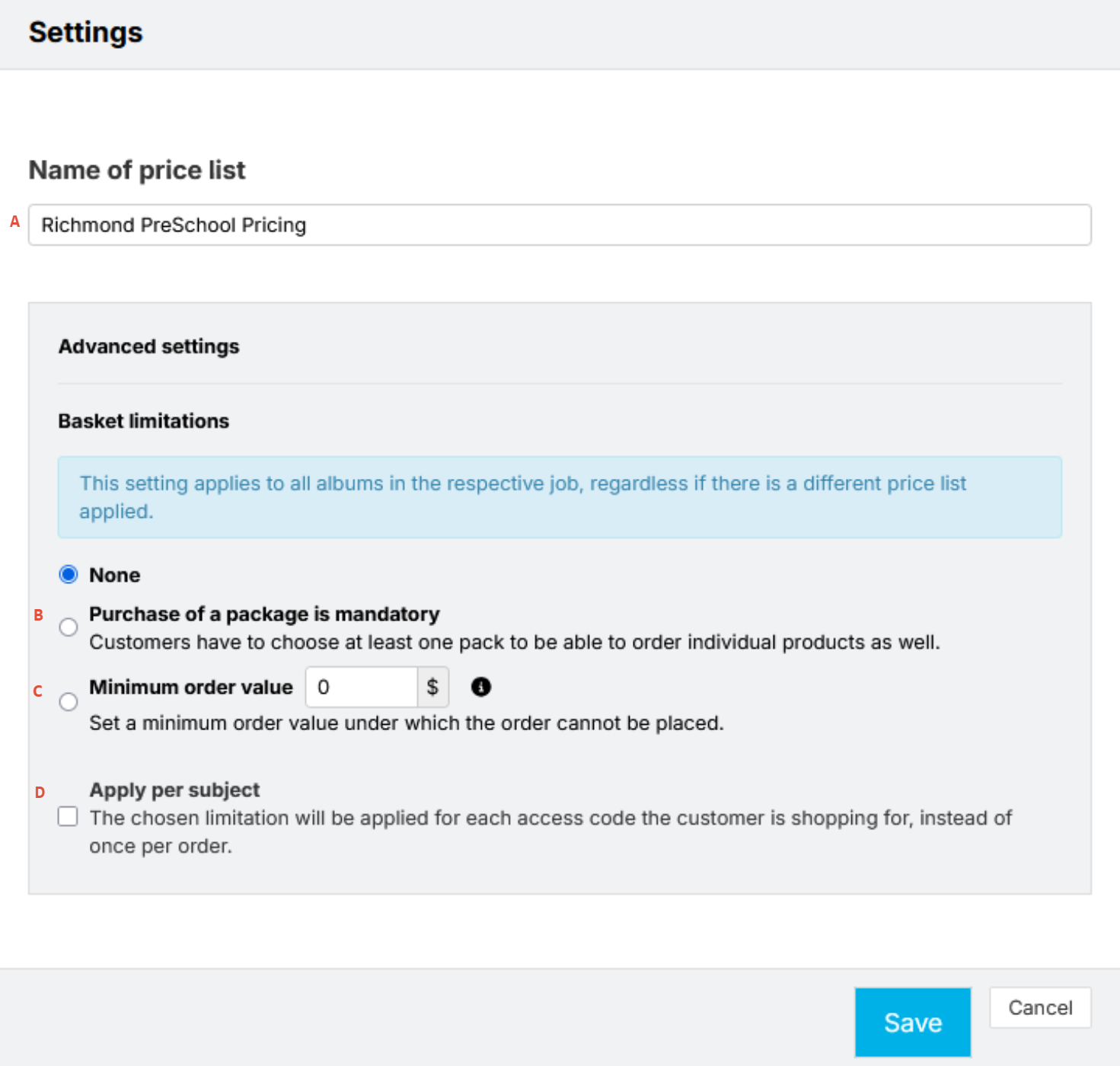
- Name of price list: Change the name of your price list.
- Purchase of a package is mandatory: Requires customers to buy a package before adding individual (à la carte) items.
⚠ Note: This applies to all albums in a job, even if another price list is used. - Minimum order value: Set a minimum order amount required to complete a purchase [Additional feature available via Customer Care for paid plan users].
- Apply per access code: Decide if package purchase is required per access code.[UK only]
Example: Parents purchasing separately
If this box is checked, only the first parent needs to meet the package requirement. If it's unchecked, all parents using the access code must meet it individually.
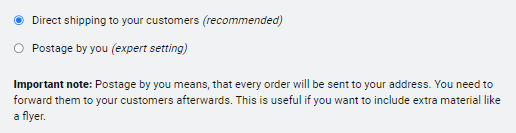
Direct shipping to your customers / Postage by you: Change this setting to have orders sent to you (not the customer). You'll then mail them out manually. In most cases, Batch Shipping is the better choice.
- 4Click Save to apply your changes.
The takeaway
Use the Price List Settings page to adjust ordering rules, thresholds, and delivery preferences.