
Table of contents
Overview
Stripe Express is GotPhoto’s payment processor. With Stripe Express, you can accept payments via credit/debit card, Apple Pay, and Google Pay. Below are the steps to set up your Stripe Express account within GotPhoto. If you are looking for general information about our Stripe integrations such as payments methods and refund handling, please refer to this article: Stripe Express
Setup instructions
- 1Navigate to the Payment Methods page:
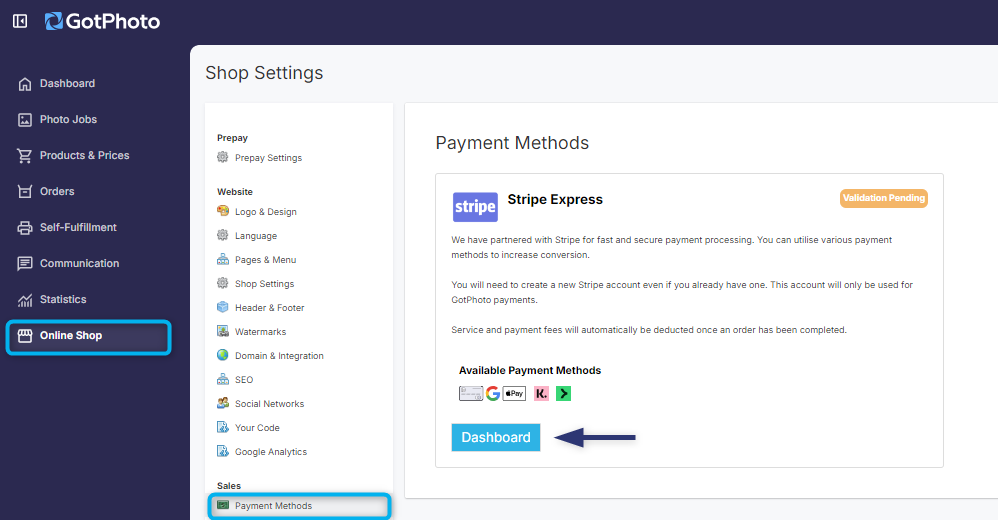
- Click Online Shop → Payment Methods (under Sale) in the Shop Settings menu.
- 2Then click the blue Dashboard button.
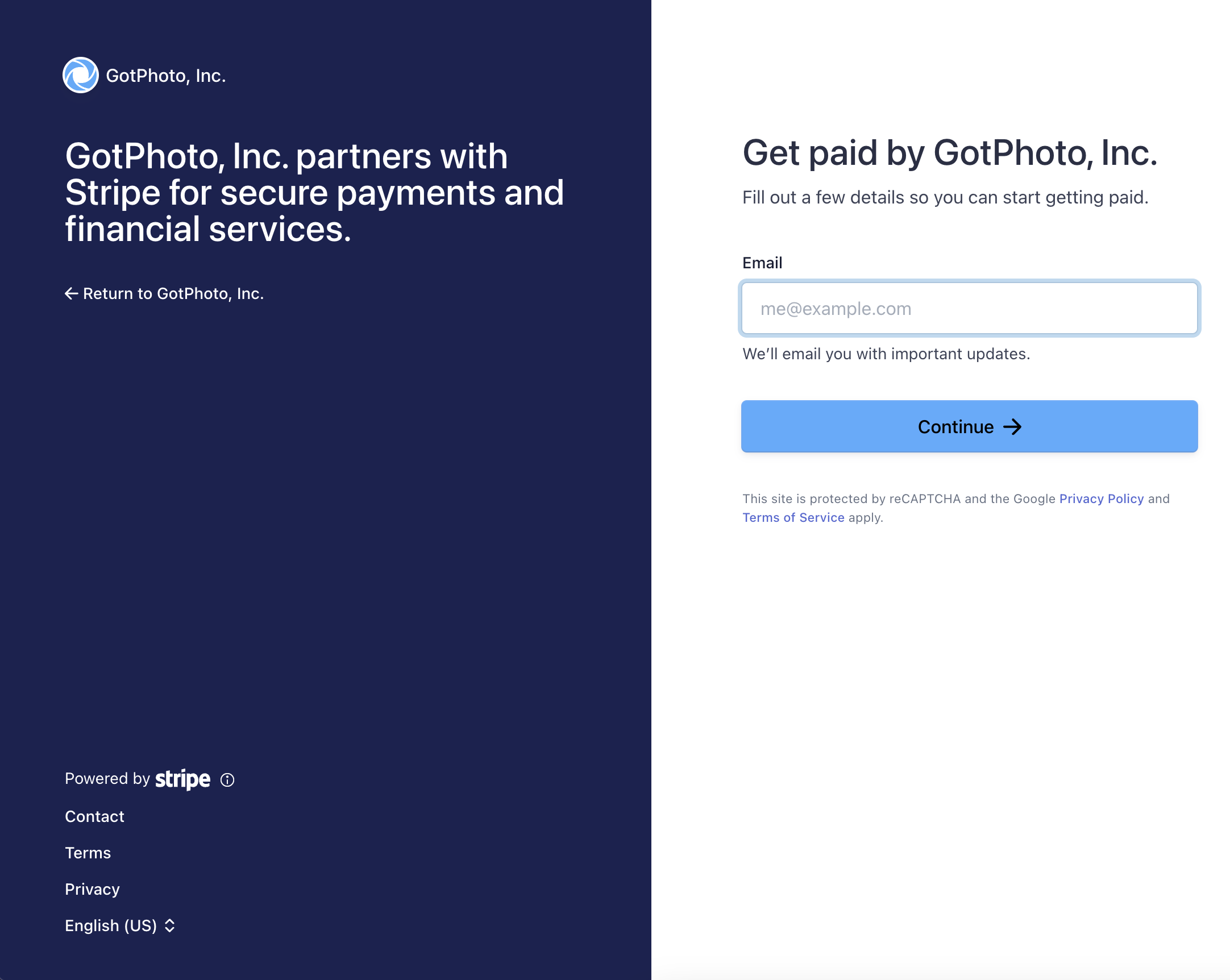
- 3You’ll be redirected to Stripe. Even if you already have a Stripe account, a new one must be created for GotPhoto. Follow the prompts on-screen.
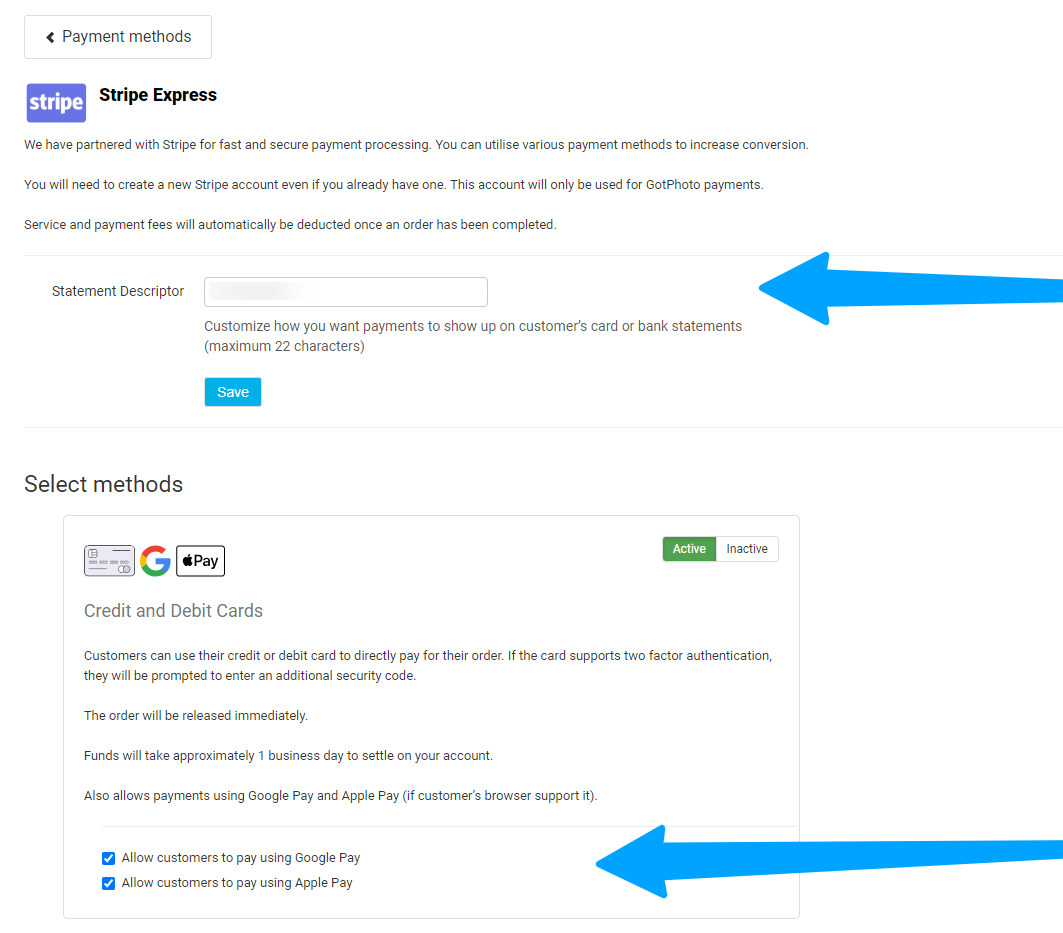
- 4You’ll return to GotPhoto, and your Stripe account will now be connected.
- Click Modify to update the statement descriptor (the text on your customers’ billing statements).
- You can also enable or disable Apple Pay and Google Pay (recommended to leave them enabled).
- 5Customers must have a valid credit card in Apple/Google Pay, not be in incognito mode, and have appropriate browser settings enabled.
Send a test payment
To verify your Stripe setup, follow these steps to complete a $1 test transaction:
- 1Create a new Price List.
- 2Add a $1 download product to the Price Profile.
- 3Assign it to a demo job (e.g., “Demo Preschool”).
- 4Set the job to manual revision.
- 5Visit your shop as a customer:
- Click Go to My Shop → Proofing Shop as Customer..
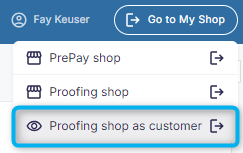
- Click Go to My Shop → Proofing Shop as Customer..
- 6Enter access code: TEST.
- 7Complete checkout using the download product.
- 8Check the Order page to confirm payment success.
- 9Click Refund on the order page and enter the full amount to initiate a refund.
- 10Once processed, the payment will show as Refunded. The amount typically returns to your card within ~48 hours.
For more details, read our Stripe integration help article.
A note on transaction fees
Like all processors, Stripe charges a fee. This can't be passed directly to customers, but you can offset it by adjusting your Price Lists.
The takeaway
Easily integrate Stripe Express to securely accept payments via credit/debit cards, Apple Pay, and Google Pay. Setup is simple, testing is recommended, and settings can be tailored to fit your business needs.
Related articles