
 SMS capabilities are currently available to North American customers only. We look forward to implementing GDPR-compliant SMS functionality for our UK customers in the future.
Table of contents
- Overview
- SMS setup
- Create and add an SMS to a campaign
- Testing
- Unsubscribing from SMS messages
- The takeaway
Overview
GotPhoto uses Twilio, a robust automated marketing system that allows you to send scheduled emails and text messages to notify customers when their photos are ready and remind them to order. GotPhoto covers the cost of all SMS messages sent via the system. This guide shows how to configure your SMS (text messaging) settings.
SMS setup
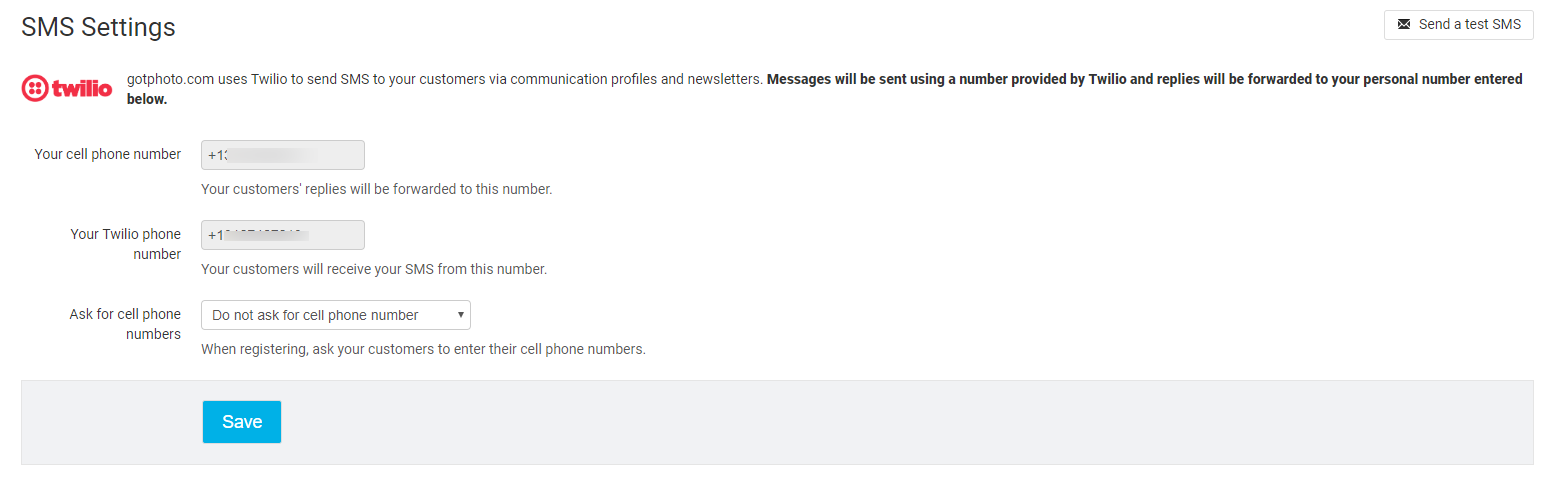
The SMS Settings page can be found under Communication in your admin area.
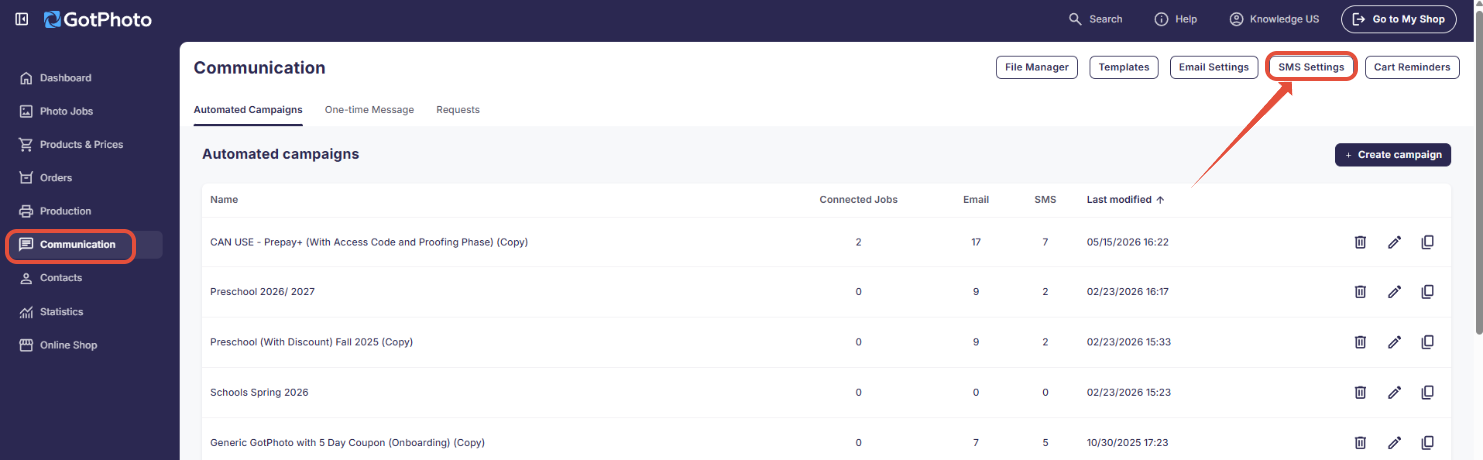
US customers
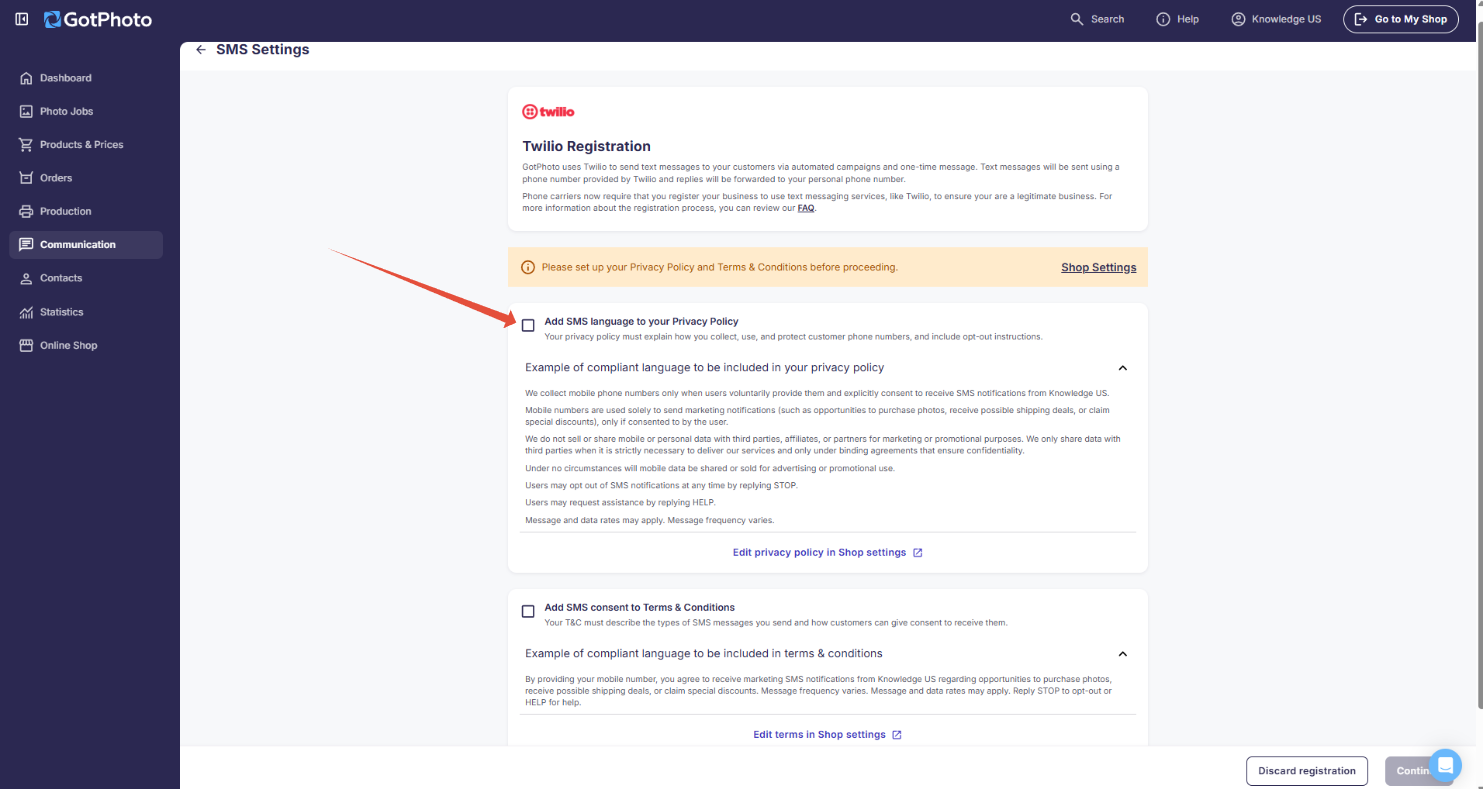
Important: Your Privacy Policy and Terms & Conditions need to include SMS language. Otherwise, Twilio will reject your registration, and you won't be able to send SMS messages to your customers.
- 1Ensure you've added SMS language to your shop's Privacy Policy and check the box when done.
- 2Add SMS consent to your shop's Terms & Conditions and check the box when done.
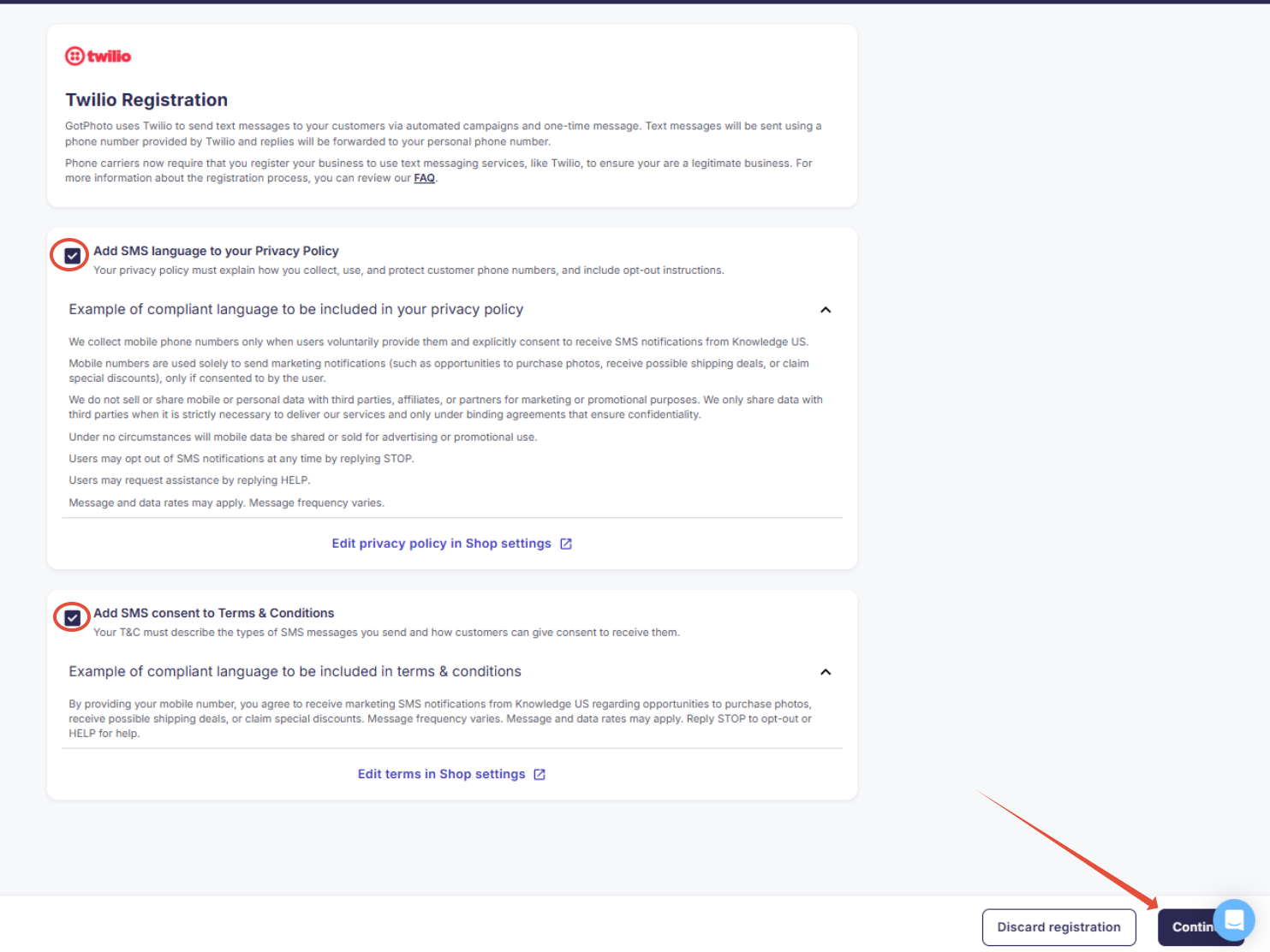
- 3Then, click Continue.
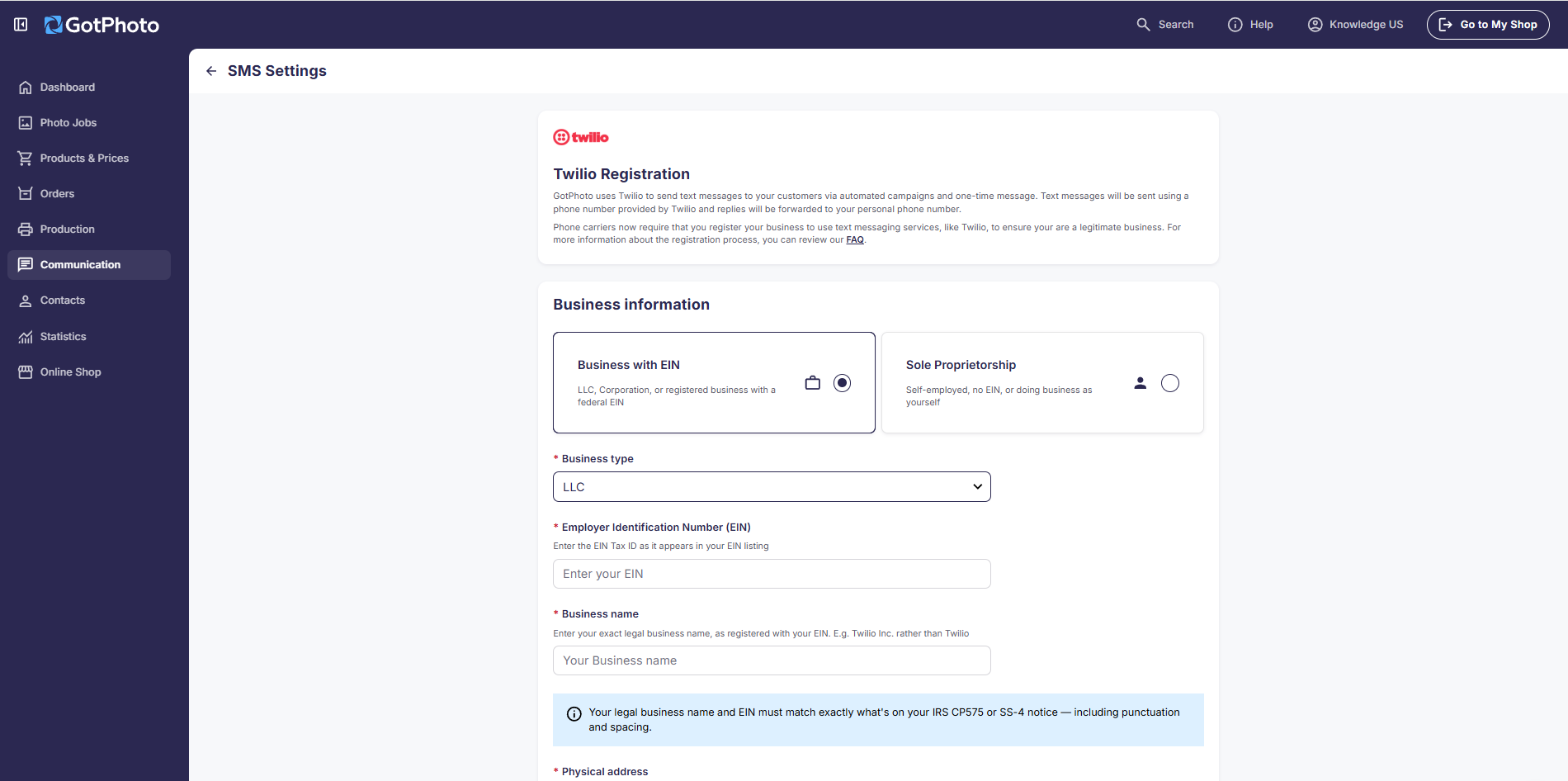
- 4Now proceed with the Twilio registration. To ensure a smooth registration process, review our dedicated guide covering each step: Twilio Registration Requirements.
Canadian customers
- 1Enter your cell phone number, including +1 for the country code.
- 2Messages are sent from a Twilio number. Any customer replies are forwarded to the phone number you provide.
- 3Note: Entering a phone number remains optional for your customers, even if you mark it as required.
- 4Click Register.
- 5Click Send test SMS and confirm receipt.
Create and add an SMS to a campaign
Click here to learn how to add an SMS to an automated campaign. After adding it, return to this article to continue setup.
Testing
Make sure everything is working correctly by running a quick test:
- 1Create a test photo job.
- 2Assign an automated campaign.
- 3Upload sample photos and activate access codes.
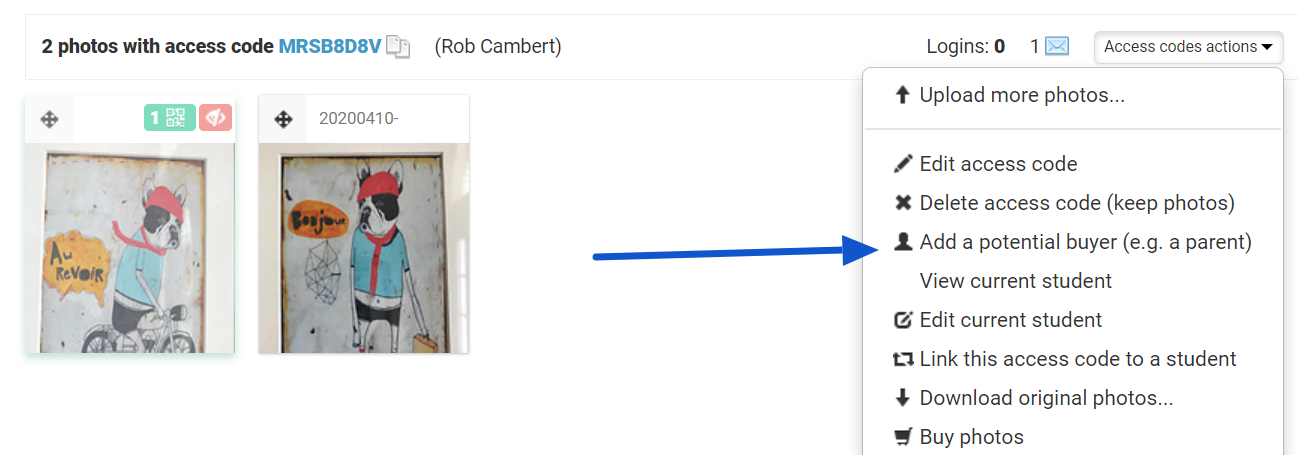
- 4Add yourself as a test buyer with your mobile number.
- 1Set the job status to selling. You should receive the SMS message.
Unsubscribing from SMS messages
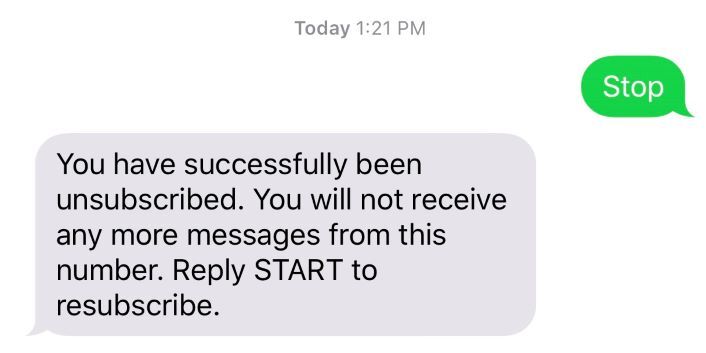
If a customer replies with STOP (not case-sensitive), they are immediately unsubscribed and notified. To re-subscribe, they can reply START.
Important: If a customer unsubscribes, this change isn't reflected automatically in your admin area. To keep your records accurate:
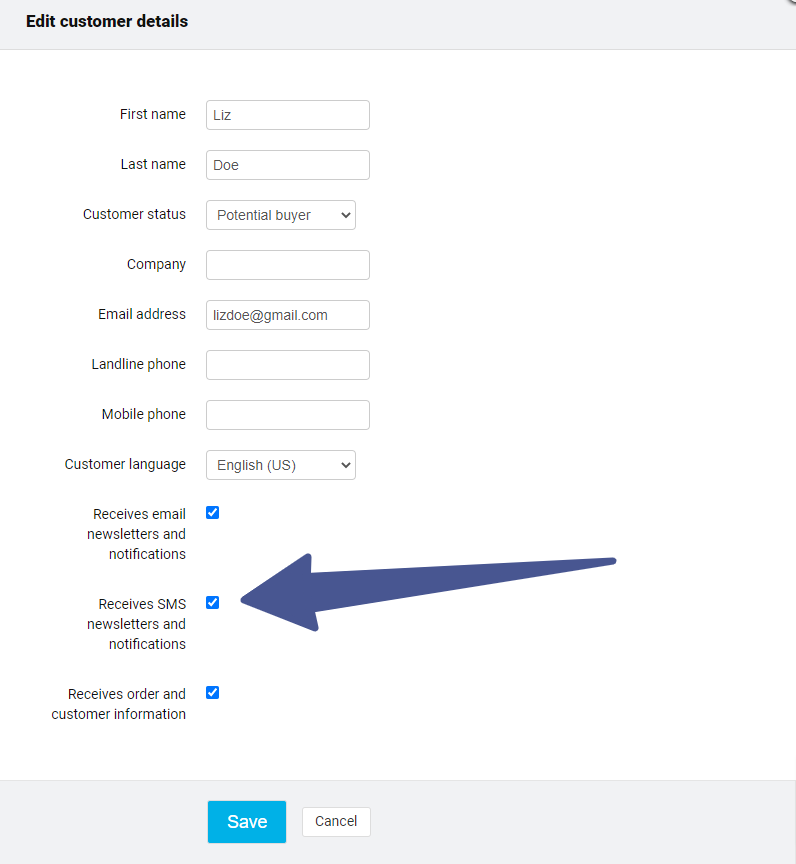
- 1Go to the customer’s profile.
- 2Click Edit customer.
- 3Uncheck “Receives SMS newsletter and notifications.”
The takeaway
Make the most of GotPhoto’s automated communication tools by setting up SMS notifications with our partner Twilio. With proper configuration and testing, you’ll be able to reach customers more effectively and ensure a seamless messaging experience.
Related articles