
Overview
Once you have created an automated campaign, it’s time to link it to your photo job. The campaign you choose will apply to both Prepay and regular sales. This depends on which triggers you’ve used-not the sales type itself.
⚠ Important: If you’ve uploaded a names list with customer contact data, certain Prepay triggers might activate as soon as you save your job settings. Always double-check your campaign and triggers before linking it to a job.
Setup
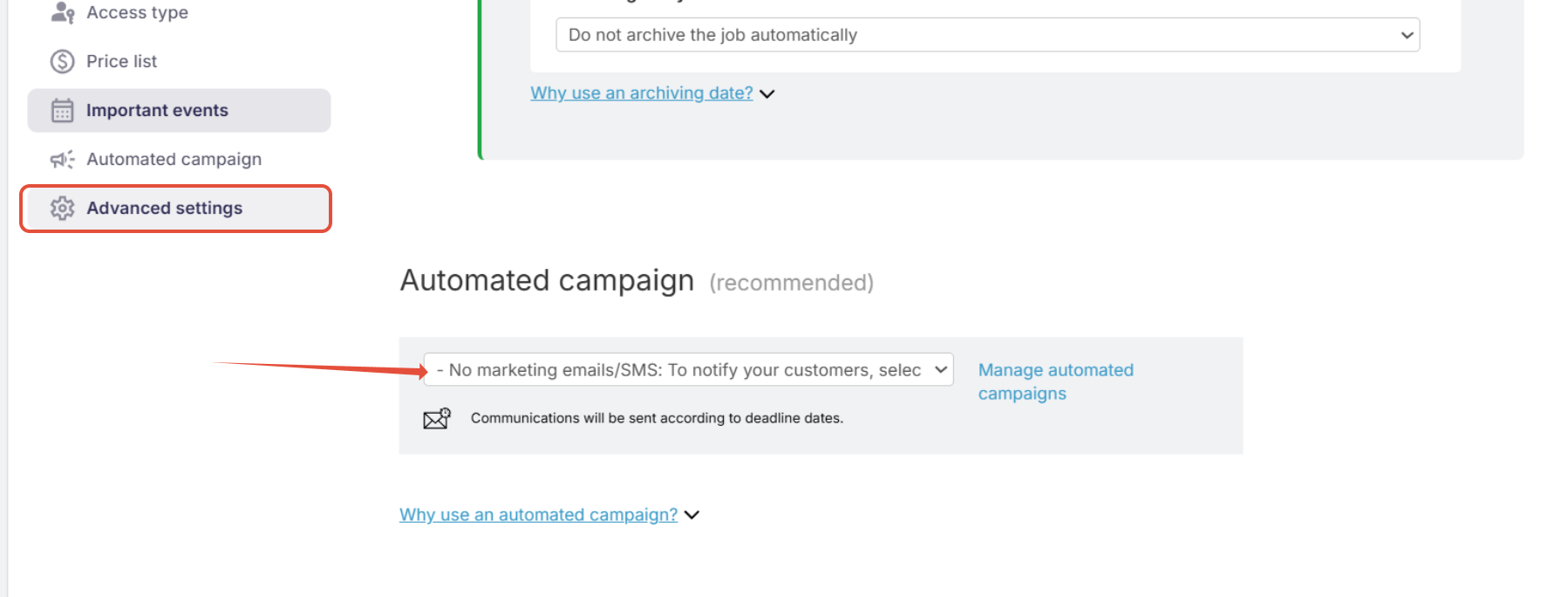
To connect your campaign, go to the Photo Job Settings and scroll to Step 4 – Communication Profile:
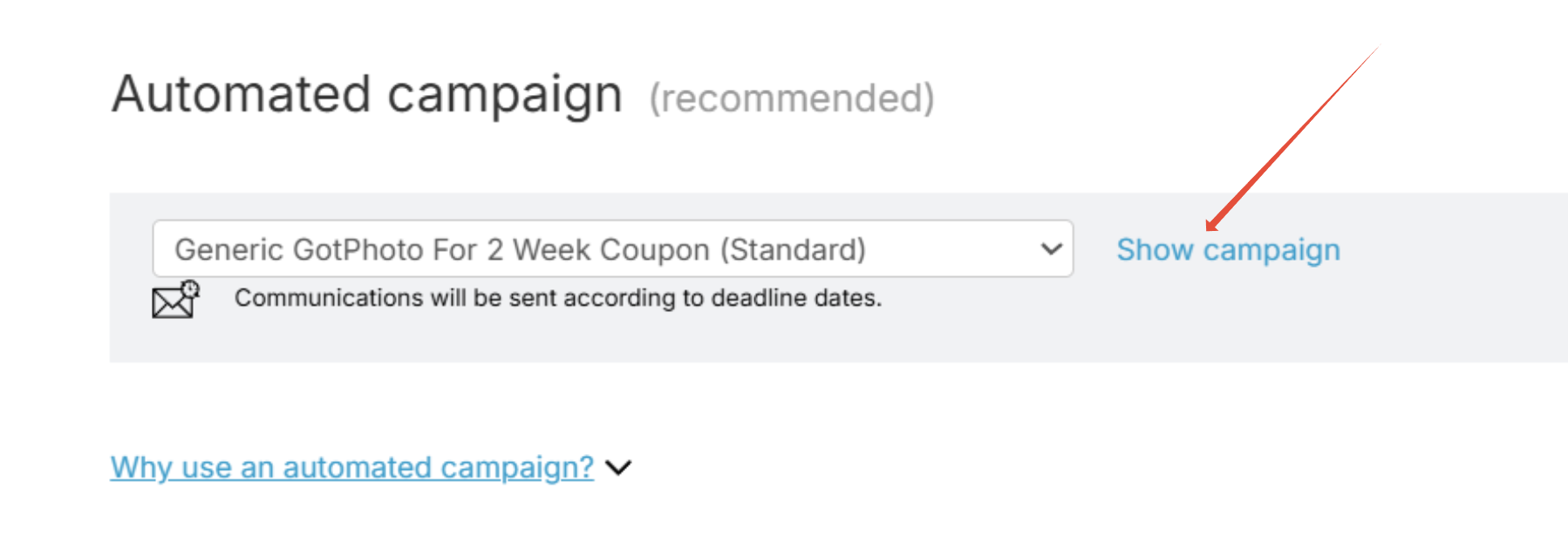
- Select your campaign from the dropdown menu.
- Click Show profile to preview the campaign's settings and triggers.
- Save your changes.
The takeaway
Linking a communication campaign to your photo job ensures your messages are sent at the right time. This helps increase engagement whether you’re running Prepay or regular sales campaigns.