
Table of contents
- Overview
- Requirements
- How to export a names list
- How to retrieve the original names list
- FAQ
- The takeaway
Overview
You can export a list of names from a photo job if you originally uploaded student data or a names list into the job. This process allows you to reuse or reference the data outside GotPhoto.
Requirements
This option is only available if you previously uploaded student data or a names list into the photo job.
How to export a names list
Follow these steps to export your list of names from a photo job:
- 1Go to the Photo Job main settings page and click the blue View names button.
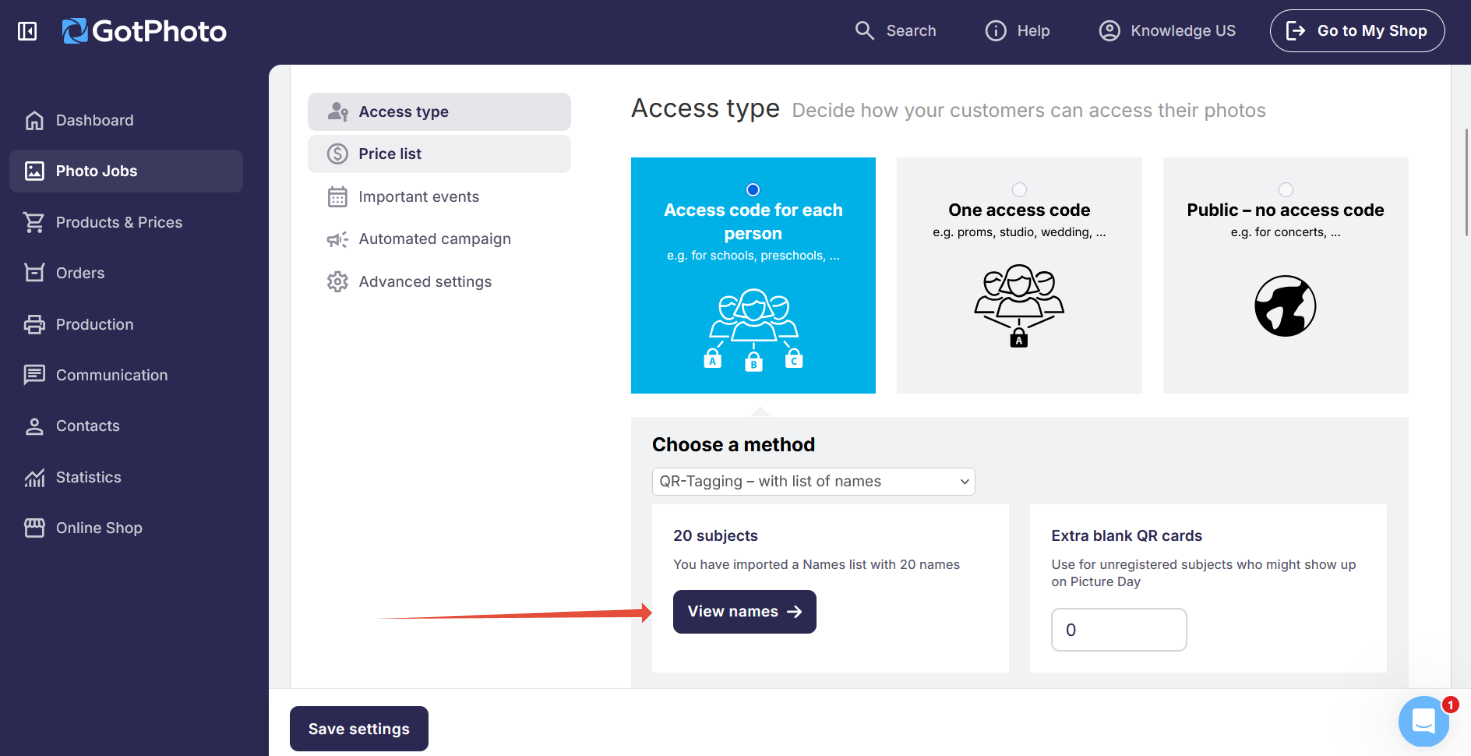
- 2Click the Export button and choose your preferred file format.
How to retrieve the previously imported names list
Follow these steps if you need to redownload the prior list of names you imported into a photo job::
- 1Go to the Photo Job main settings page and click the blue View names button.
- 2Click the Download original file button.
FAQ
What is the difference between the Export and Download original file options?
Exporting the names list will export the current list in the photo job, including all the added information, whereas downloading original file will provide you with the names list uploaded into the job prior to current list.
The takeaway
If you’ve uploaded student data or a names list into a photo job, you can easily export it by using the View names and Export options in the Photo Job main settings page. Retrieving the original names list can be done by using the View names and Download original file options.