
Table of contents
- Overview
- Create a slideshow page
- Adjust page settings
- Upload photos
- Publish and view your slideshow
- The takeaway
Overview
GotPhoto lets you create slideshow carousel pages for your online shop. These pages provide an elegant way to showcase your portfolio, highlight sample work, and engage potential customers.
Create a slideshow page
You can add a slideshow page from the Pages & Menu settings page.
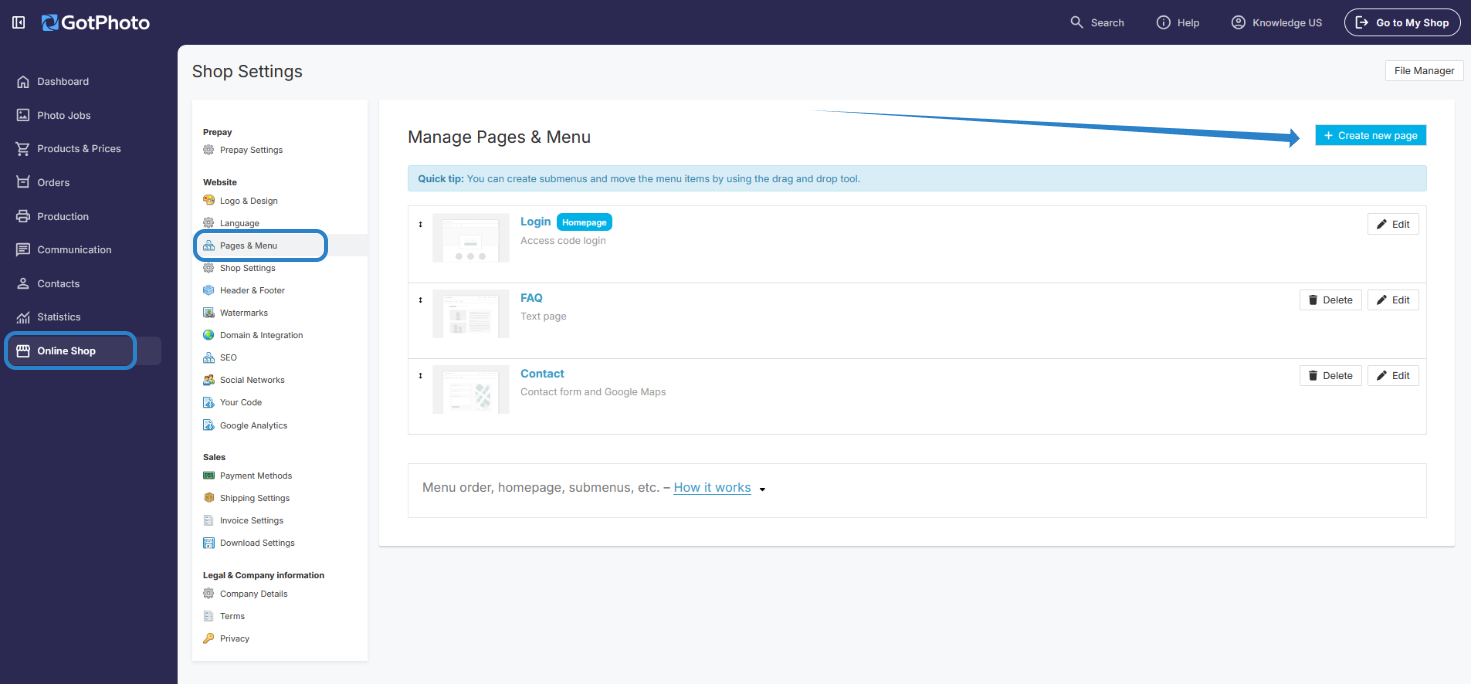
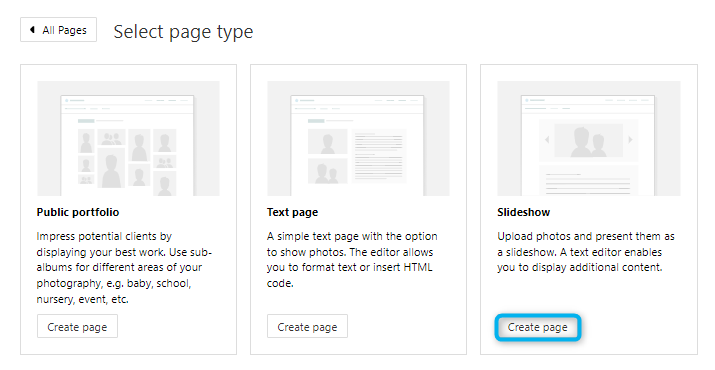
Click + Create new page, then choose Slideshow as the page type and click Create page.
Adjust page settings
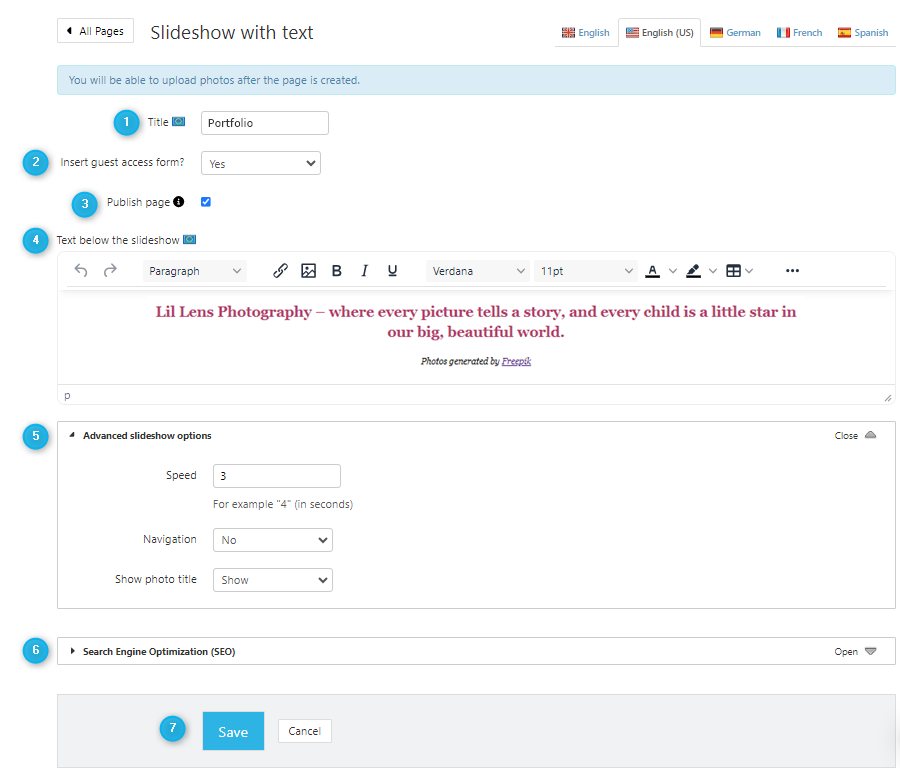
On the settings page, you can configure the slideshow before uploading photos:
- 1Title: Name your slideshow page.
- 2Guest access form: Set to “Yes” to require login with an access code.
- 3Publish page: By default, your page is published. Untick this option to keep it unpublished.
- 4Text content: Add and format text below your slideshow carousel.
- 5Slideshow settings: Adjust slide speed, enable/disable manual navigation, and choose whether to show image titles.
- 6SEO settings: Add keywords, descriptions, and indexing preferences.
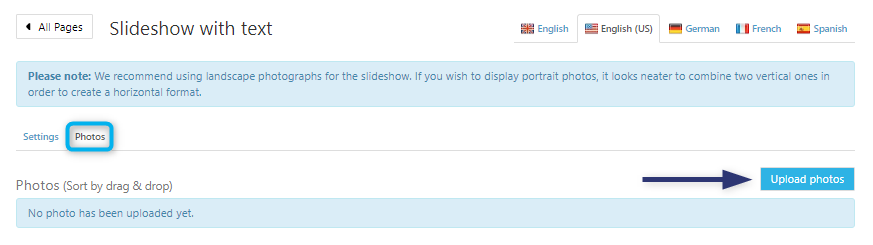
- 7Save: Once you save, a Photos tab becomes available.
Upload photos
In the Photos tab, click Upload Photos to add your images.
Publish and view your slideshow
After uploading, your new slideshow page will appear on your GotPhoto site under the title you chose.

The takeaway
Slideshow carousel pages give you a clean, professional way to showcase your portfolio in GotPhoto. Customize the design, upload photos, and adjust settings to create an engaging visual experience for your customers.